Mimigar is a real-time octave band analyzer for iOS.
- Calibration
- 1/1 and 1/3 octave band analysis
- A/C/F frequency weighting
- Fast/Slow time averaging
- Auto recording
Full-functional RTA is in your pocket, please enjoy your acoustic measurement!
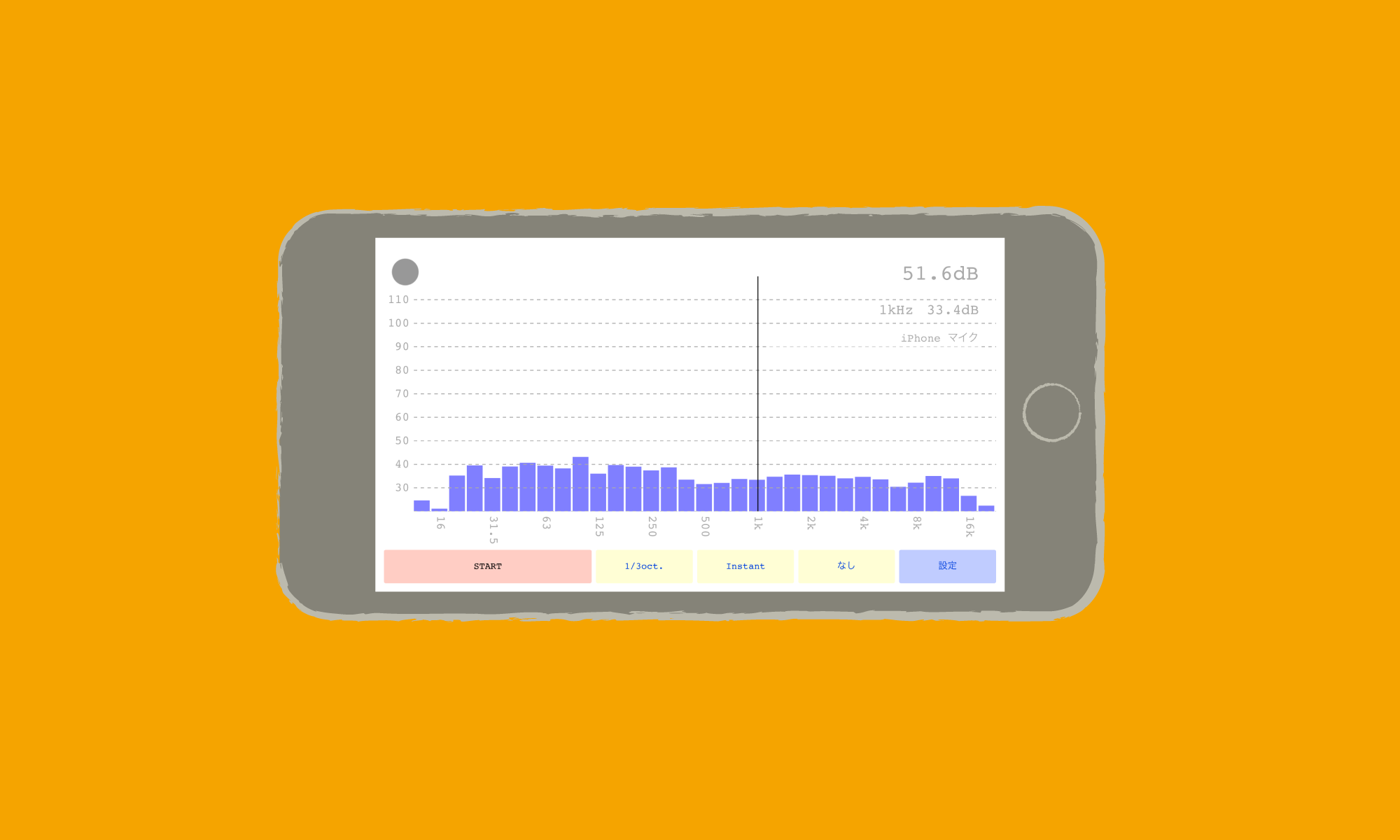

Best RTA in your pocket
Mimigar is a real-time octave band analyzer for iOS.
Full-functional RTA is in your pocket, please enjoy your acoustic measurement!
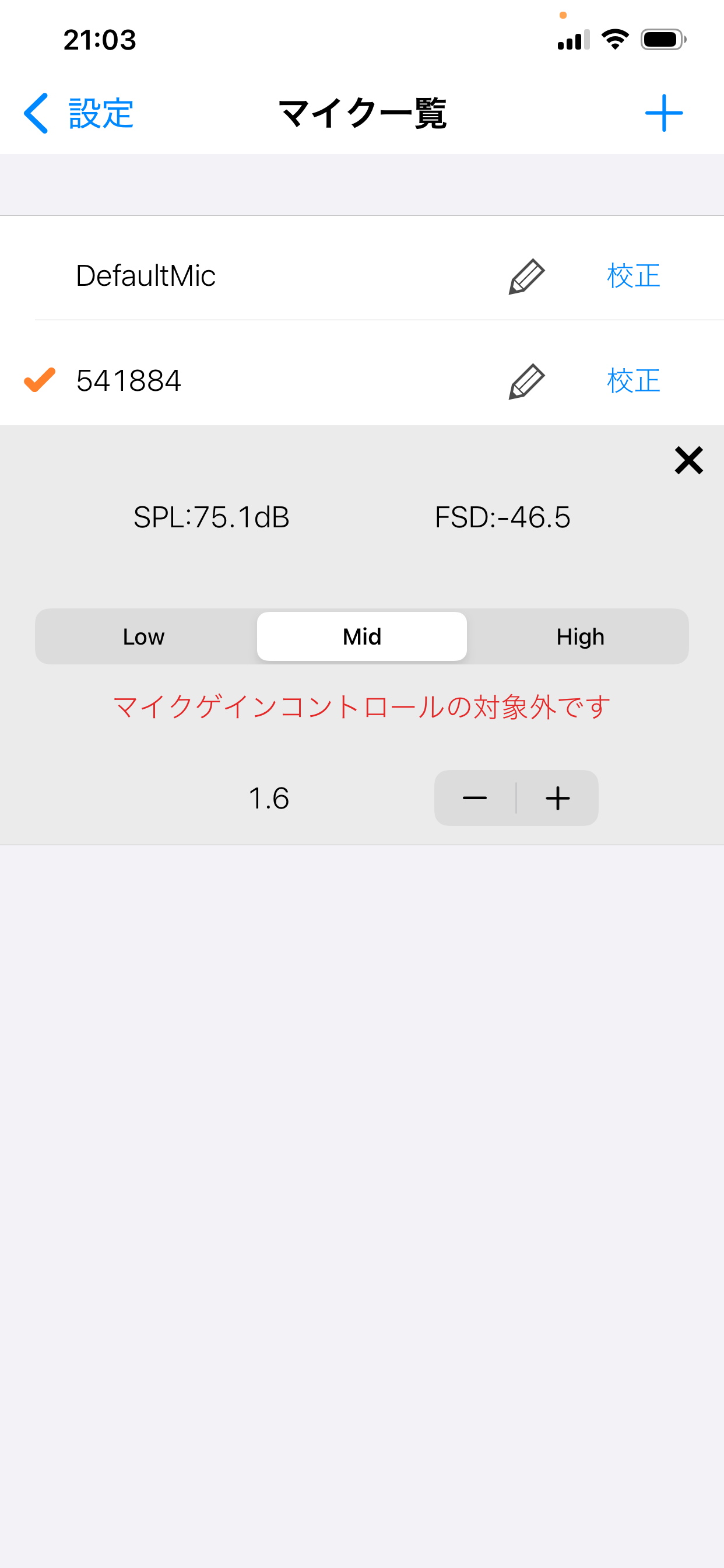
For accurate measurement, you can calibrate the microphone using a pistonphone.
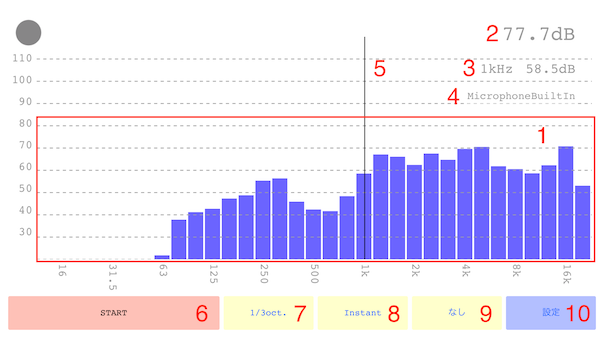
Displays level with frequency (Hz) on horizontal axis and power level (dB) on vertical axis
Shows total power level. The value reflects frequency weighting from 9
Shows cursor position (Hz) and power level (dB) at that point
Shows currently used device
The cursor
Toggles analysis Start/Stop
Switches between 1/1 and 1/3
Switches between Fast/Slow/Instant
Switches between A/C/F characteristics
Moves to settings screen
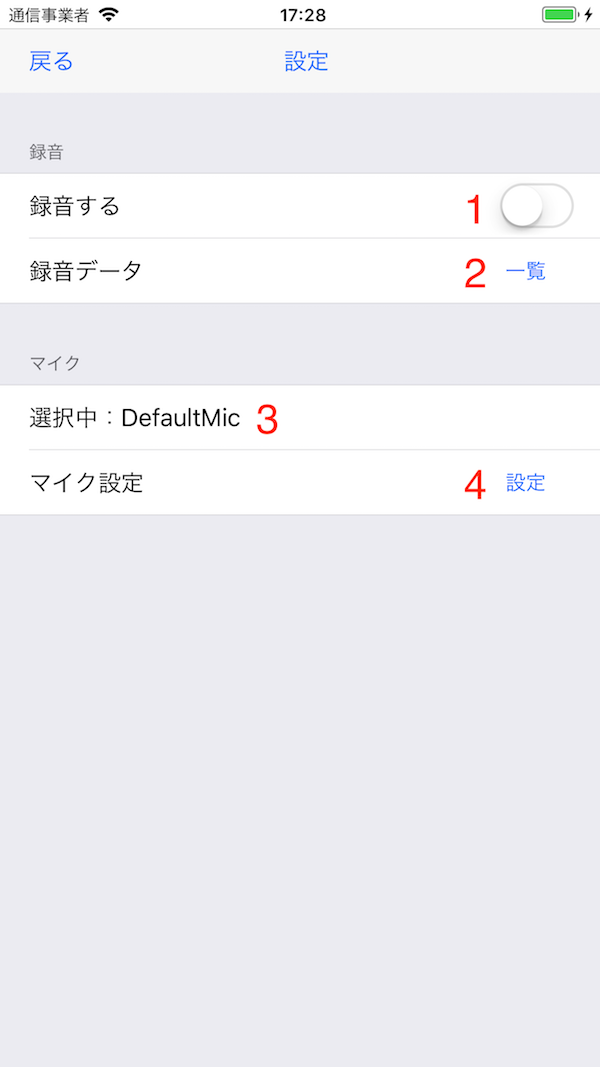
When this checkbox is on and Start/Stop button is pressed, measurement results are saved to file
Moves to recorded file list
Shows currently used microphone name
Moves to microphone list
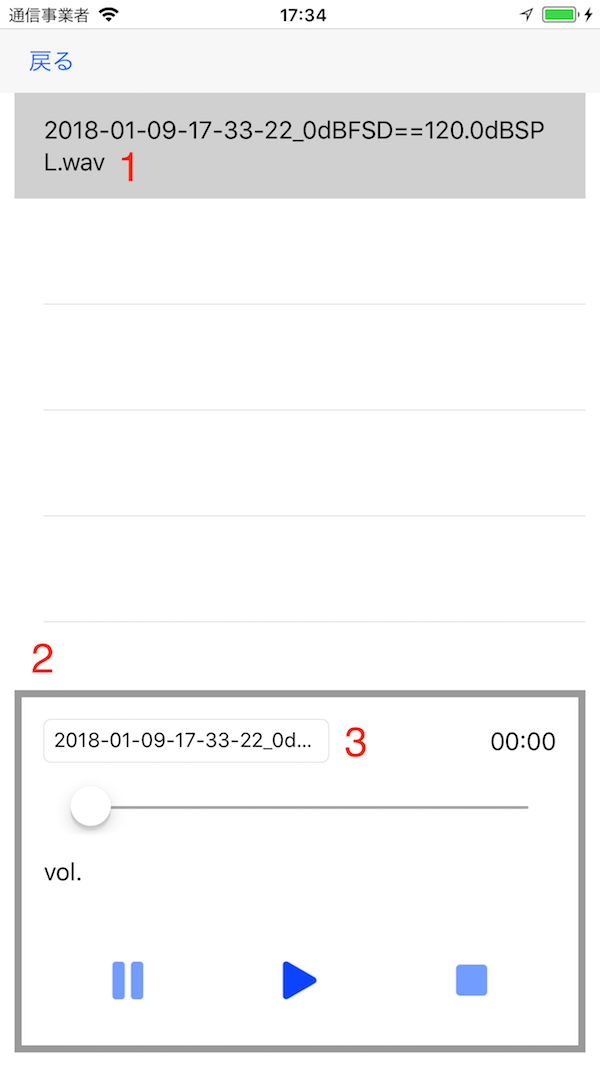
Select a file to start playback
Controls the playing file
Enter string to add at the beginning of filename
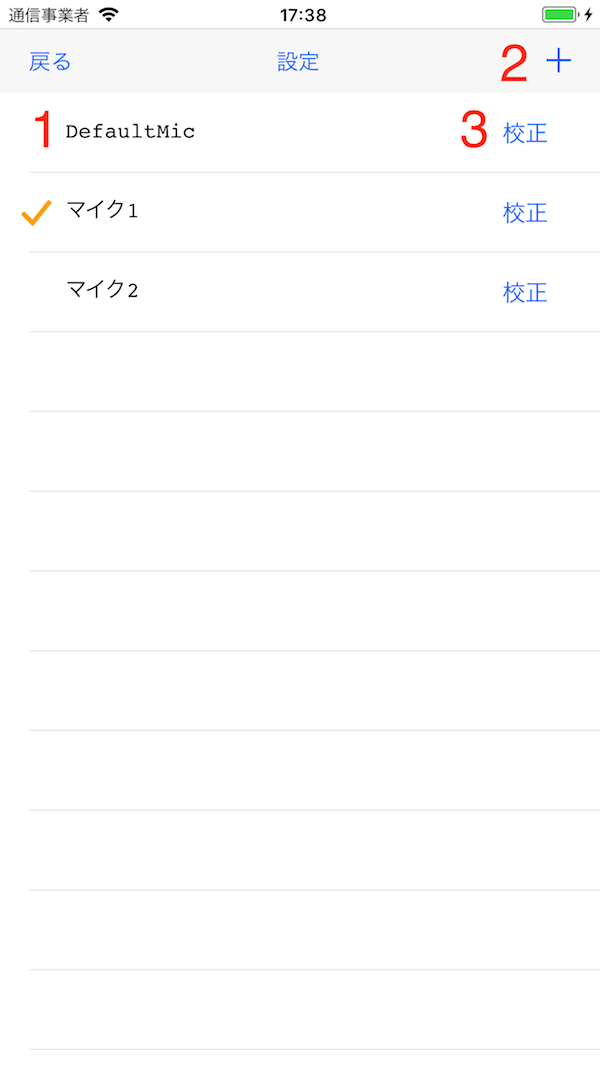
Switches currently used microphone
Moves to detailed microphone settings screen
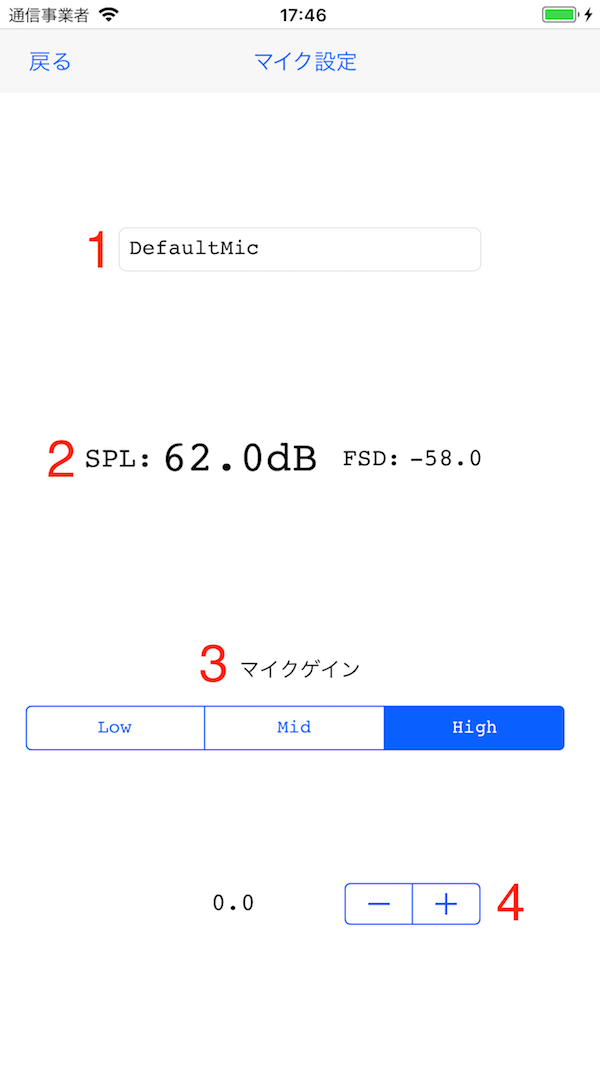
Switches input gain between HIGH/MID/LOW
Fine-tunes gain. Adjust so that level (3) shows 94dB or 104dB while listening to 1kHz tone
Shows current level